

Sunday, 7:20 AM
The owner of a small design studio opens ChatGPT with her coffee. A message written overnight is waiting for her: "I read the three emails from the supplier. One of them pushes the shipment back a week, which affects the date you promised the client. I drafted an update to her. I didn't send it. Approve?"
Nobody asked it to check the emails that night. It simply knew this mattered to her, because she had told it a week earlier.
That's a dot. And the interesting question isn't what it can do, but what's written on the note you left it.
OpenAI dots are standing agents inside ChatGPT, launched on September 29, 2026 at DevDay. In our conference roundup we gave them one paragraph. Here they get a full guide: what a dot is, how it works on the inside, how to create one step by step, how to write rules for it, who can get it and whether it's available in Israel, and what you could hand it this week. Every detail was checked against OpenAI's official documentation. What we couldn't verify didn't make it in.
In short
- OpenAI dots are agents that live inside ChatGPT and don't disappear when the conversation ends. Each dot has its own computer and browser in the cloud, runs on GPT-6 Astra, and keeps working even when your computer is off.
- It does proactive research in the background, using read-only tools. Before any action that affects your accounts, an automatic check decides whether to continue, ask for approval or hand the step to you. Custom Rules let you tune this.
- Rolling out gradually to Pro (from $100 a month), Business Premium and Enterprise plans. Outside Pro, the rollout is worldwide. On Pro the exceptions are the European Economic Area, the UK and Switzerland. Israel is not on the exceptions list, but the rollout is gradual, so check your account.
- A dot is a great fit for tracking, research, drafts and summaries in common tools. When the work sits deep inside your business systems, it's worth checking other options too.
What is OpenAI dots? An assistant with a note on the fridge
The bottom line: a dot isn't a chat you open from scratch every time. It's an agent you set up once, give a responsibility, and it keeps going with it over time.
This is how OpenAI defines it in the documentation: an always-on agent that moves work forward across your tools and projects, and reaches out to you when a decision is needed. You can keep talking to it while it works.
The image that helps most: someone who watches your house while you're abroad. They have keys only to the rooms you gave them. They walk around, notice things and jot down notes, but they don't move the furniture. And on the fridge there's a note waiting for them: what they may do on their own, when to call you, and what not to touch at all.
In dots, the keys are the connections to apps, the walk around the house is proactive research, and the note on the fridge is Custom Rules. This entire guide is built around those three things.
The anatomy of a dot: what it's made of
The bottom line: a dot is a model that was given its own computer, memory, connections to apps and several channels to talk to it, and every one of its actions goes through a check.
- The brain. GPT-6 Astra, the same model that powers advanced work in ChatGPT. In organizations, the administrator's model settings don't apply to dots.
- The computer. A cloud computer and browser, separate from your own devices. Work continues when your computer is off, and the cloud computer keeps its state between uses. You can peek into it from the dot's profile, and by clicking Take over you can grab the mouse and keyboard.
- The memory. It starts with what's relevant from ChatGPT's memory, and keeps its own notes on preferences, decisions and open work. These notes are separate from ChatGPT's memory, and they are not a full transcript of everything you said.
- The hands. Plugins installed and enabled in your account, such as Gmail, Google Drive and GitHub, with the permissions you already set in them. According to MacRumors and BGR, this covers more than 4,000 apps.
- Its small team. Background agents that work in parallel and report back to it, and separate work threads that appear in your app.
- Your computer. You can connect one personal computer, so it can also work with local files and programs. This is optional, and the computer must be on with the ChatGPT app open.
How a dot works: from goal, through research, to a decision
The bottom line: the dot thinks and checks on its own, but every action that touches your accounts passes through one gate, where it's decided whether it continues, asks or hands off to you.
The path of every task in a dot
- You give a responsibilityA goal, sources, and what needs your decision
- Proactive research in the backgroundRead-only. Doesn't send, change or control the computer
- Prepares the next stepA draft, an update, or a task on the cloud computer
- Automatic checkContinues, asks for approval, or hands the step to you
In gold: the points where you're involved. Based on the Tasks and memory and Controls pages in OpenAI's documentation.
Step 1: a responsibility, not a request. OpenAI recommends describing ongoing work to the dot, not a one-time request: what matters, which sources to work from, and which decisions are reserved for you. You can give it several areas of responsibility at once.
Step 2: proactive research. When you're not talking to it, the dot goes through information it's allowed to read and jots private notes to itself. For example, it might notice that a new decision contradicts a draft you sent it last week. The important part: according to the documentation, the tools of this research can't send messages, change content in apps, or control the browser or computer. What it finds comes back to you as a suggestion or a question.
Step 3: work. When there's something to do, it prepares: drafts, updates a document, opens a task on the cloud computer or splits work among background agents. It also decides on its own when to stop and when to "wake up" and continue, so you don't have to set a schedule for every follow-up.
Step 4: the gate. Before any action that might affect your accounts or share information, an automatic check compares it with your instructions, the permissions, Custom Rules and the built-in safety requirements. The result is one of three: continue, ask for approval, or hand the step to you. Some actions always go to you. OpenAI's example: you'll change a password yourself.
Who gets it, what it costs, and whether dots are available in Israel
The bottom line: if you have Pro, Business Premium or Enterprise, according to the documentation you're on an eligible plan. Israel is not on the list of excluded regions. What's left is waiting for the gradual rollout to reach you.
| Plan | Official price | dots availability | Good to know |
|---|---|---|---|
| Pro | $100, $200 or $500 a month | Ages 18 and up, outside the European Economic Area, the UK and Switzerland | Gradual rollout. You may not see the option right away |
| Business Premium | Not detailed on the documentation page | Worldwide rollout | First dot included, per MacRumors and Fortune |
| Enterprise | Not published | Worldwide rollout, off by default | The administrator turns on Use dots (Beta) |
| Free, Go, Plus, Business | Per plan | Not listed among eligible plans | No date published |
What counts toward the quota? According to the documentation, conversations with the dot don't count toward ChatGPT's usage limits. Tasks the dot opens or manages in Work or in Codex count as usual toward the limits of those products. Every eligible plan has a quota for deeper work, and in the first month after launch it is expanded.
How many dots do you get? According to MacRumors and Fortune, one main dot is included in the subscription. Teams of several dots will come later, and Fortune adds that additional dots will cost extra, with pricing not yet published.
Are dots available in Israel? How to check
The honest answer: according to the documentation, Israel is within the eligible regions, but OpenAI hasn't published a positive list of countries, and the rollout is gradual. The only exclusion in the documentation is for Pro subscribers in the European Economic Area, the UK and Switzerland. Business Premium and Enterprise are opening worldwide. We also found no official mention of working in Hebrew, so test it yourself on a small task. If you're reading from another country, check availability for your own region the same way.
- Make sure you're on an eligible plan: Pro, Business Premium or Enterprise. On Pro you need to be over 18.
- Open ChatGPT in the desktop app or in a browser on a computer, not on mobile.
- Look for dots in the interface. If the option doesn't appear, according to OpenAI it may simply not have reached your account yet.
- On Enterprise: ask the system administrator to check whether Use dots (Beta) is enabled for you, or granted in a custom role.
How to create a dot: a step-by-step guide
The bottom line: setup takes a few minutes, but it has to start on a computer. The part that really determines the result is the first instruction you give it.
The steps here are based on the Get started page of the official documentation and OpenAI's help article.
- Open dots in ChatGPT in the desktop app or in a browser on a computer, and follow the introduction. You can't create a dot on mobile, and the mobile browser version isn't supported at all.
- Connect apps. Email, calendar, files. You can skip this and connect later. Each app connects through its own plugin, with that plugin's permissions.
- Decide about your computer. In the desktop app you'll be asked whether to connect your computer. If you're not sure, skip it. You can connect it later from the profile, under Computers and Allow access.
- Give it a name and a look. At first its handle looks like @yourname-dot. After you give it a name, the handle updates. You can choose a shape, color, eyes, glasses and accessories, and change them at any time.
- An introductory conversation. The dot introduces itself, learns from the context and the connected apps, and suggests where it can help. If it lacks information or access, it asks.
- Add channels. In the dot's profile, choose Add and connect a contact channel, such as Slack. Connecting a channel doesn't grant access to email, apps or the computer. Each connection is separate.
- Give it a first responsibility, and ask it to confirm what it understood. If it's a recurring task, specify a time, a time zone and an end date, and ask it to confirm the schedule.
- Set Custom Rules, under Settings > Personalization > Permissions > Custom rules. More on this below.
After setup, the same dot is also available in the ChatGPT mobile app, once the update that supports it reaches you.
Where you talk to a dot: ChatGPT, voice, Slack and Teams
The bottom line: there's one dot, and it remembers you in every channel. But memory isn't permission to share: what you told it privately doesn't move into a team channel without your approval.
- ChatGPT. In the desktop app and in a browser on a computer. On mobile, in the app, once the update arrives.
- Voice conversation. The phone button in the conversation with the dot. You can type during the call. Ending the call doesn't stop the work it has already been given. According to the documentation, calls that the dot initiates itself are planned for after launch.
- Slack. A direct message, or mentioning it in a thread in a channel you added it to. By default it answers only you. Adding it to a channel doesn't start monitoring. You need to tell it explicitly what to check and when.
- Microsoft Teams. Supported according to the documentation pages. The Enterprise administrator guide says Teams access is currently limited to an invite-only alpha.
- Text messages. "Coming soon," per OpenAI.
A useful trick from the documentation: you can route types of updates to different channels. For example, routine progress stays in ChatGPT, and decisions reach you in Slack.
Custom Rules: the note on the fridge
The bottom line: Custom Rules are standing rules that tell the dot what to do with a particular action. There are four options. They can make it more cautious, but they can't cancel the built-in safety mechanisms.
The press described it as "allowed, with approval or blocked." The interface itself has four options, and it's worth knowing the exact wording:
| The option in the interface | What it tells the dot | When to choose it |
|---|---|---|
| Take action without asking | Carry out the action without asking for approval | Internal, reversible actions where a mistake doesn't cost much |
| Take action when you say so | Do it only when you explicitly ask, otherwise check with you right before | Actions you want to trigger manually, on your own time |
| Ask before taking action | Ask for approval every time | Anything that goes out in the business's name |
| Hand off to you | Pass the action to you, to do yourself | Irreversible or especially sensitive actions |
Here's how this might look at a small business. These are our examples, divided by color:
Examples of Custom Rules at a small business
Do without asking
- Update the internal tracking sheet
- Create email drafts, without sending
- Organize files in its own shared folder
- Summarize a Slack thread for me
Ask first
- Send an email or message to a customer
- Post in a team channel
- Schedule or move a calendar meeting
- Share a file with someone outside the business
Hand off to me
- Delete shared files
- Any payment, order or refund
- Change settings on the website or an account
- Any action in an ad account
Our illustration. You can add the "only when I ask" option to any line you want to trigger manually.
What Custom Rules don't do
This is the part most guides skip, and it's the most important:
- They don't grant access. A rule that allows "sending emails" won't help if the permission in the email plugin allows only reading. Plugin permissions are managed separately, under Open Plugins.
- They don't bypass safety. Built-in approvals, such as approval to use a saved password, remain.
- They're instructions, not a wall. OpenAI writes that the dot tries to act according to them and can make mistakes. So the real protection is a combination: minimum permission in the plugin, a clear rule, and your review.
- In an organization, the administrator decides. If the Enterprise administrator turned off Custom Rules, the saved rules don't apply, and the dot operates according to its defaults.
- Style doesn't belong in rules. Tone of writing and the way it reports are things you tell it in conversation. Custom Rules are only for the question of when it may act.
A template for writing a good rule
A good rule answers three questions: what is the action, toward whom, and in what scope. OpenAI recommends giving instructions a clear scope: who is involved, what needs to happen and when. A specific instruction can cover future actions within its scope, and anything beyond it requires a new decision.
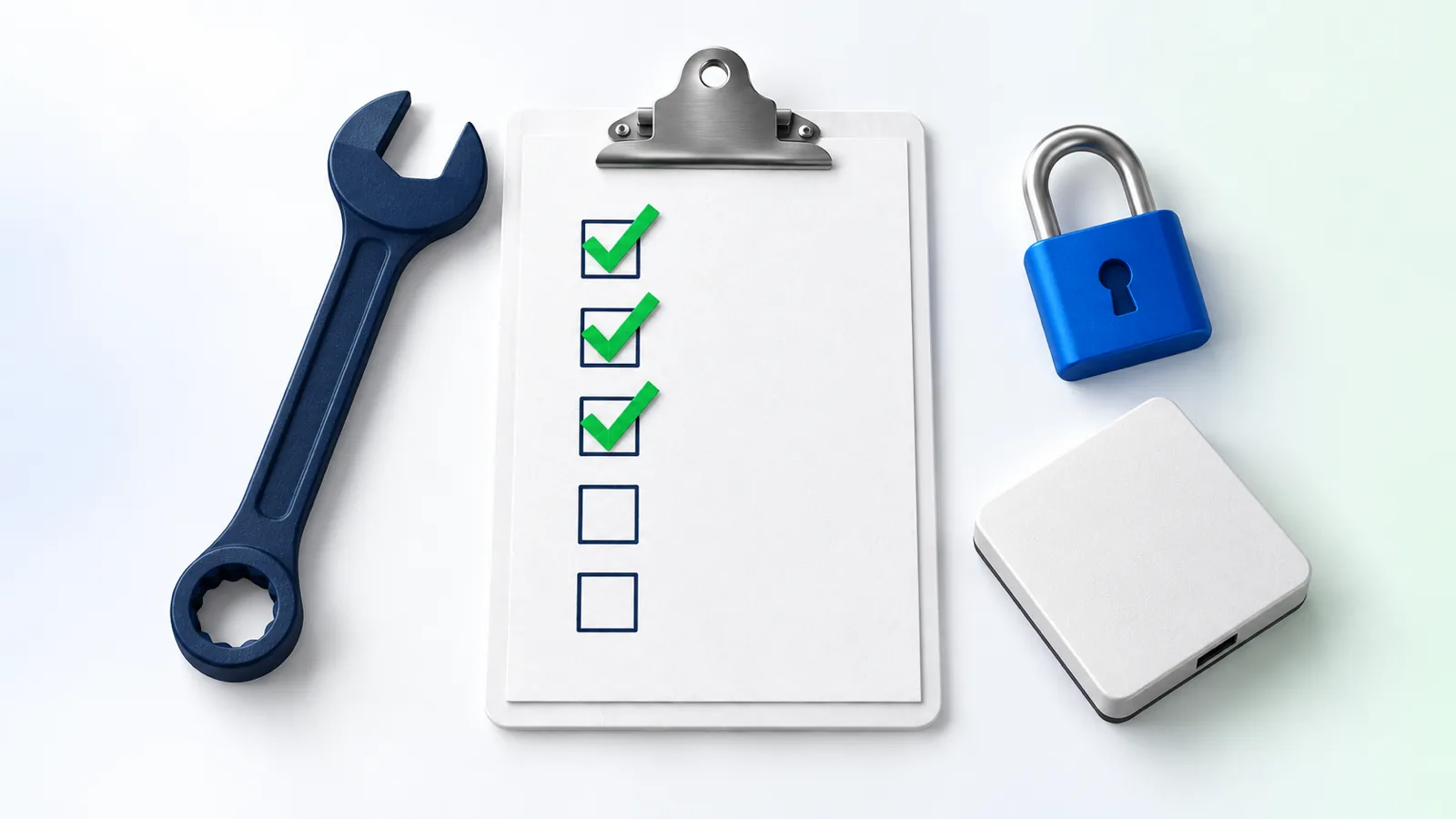
Before you turn a dot loose on anything real, go through the list. Check off what's already settled:
The note on the fridge: what to set before the dot starts
Examples of dots: for home and for business
The bottom line: the best dots get a responsibility that recurs, from clear sources, with a clear boundary. All the examples here are our own illustrations, not documentation of any particular user.
Personal life
- Tracking bills and subscription renewal dates
- Vacation planning: comparing hotels and flights by budget
- Gathering school and activity emails into a weekly list
- Following up on a refund for a faulty product
Online store
- Following supplier emails and shipping date changes
- Draft replies to recurring customer questions
- Competitor research: public prices and promotions
- A list of products missing a description or image
Service providers
- Meeting prep: a summary of all correspondence with the client
- Following up on price quotes that went unanswered
- Customer reminders as drafts, for your approval
- A weekly summary of the calendar and what's still open
Marketing and content
- From an interview or meeting: a draft post, a caption and ideas for clips
- Following new reviews and drafting responses
- Keeping campaign materials current as the product changes
- A monthly content calendar built from meetings and emails
And here are ten of them in detail: what you would write to the dot, and which rule you'd set alongside the instruction.
| Use | What you write to the dot | The rule you'd add |
|---|---|---|
| Suppliers | "Follow the emails from suppliers. If a shipping date changes, update the orders sheet and tell me which customers are affected" | Updating the sheet: without asking. Email to a supplier: ask first |
| Customer questions | "Every morning, prepare draft replies to new questions that arrived in the business email, following the policy in the document I shared" | Sending to a customer: ask first |
| Price quotes | "Keep a list of open price quotes. After five days with no reply, prepare a draft reminder for me" | Sending the reminder: only when I ask |
| Meeting prep | "The day before every client meeting on the calendar, prepare a one-page brief: what we agreed, what's open and what to ask" | No rule needed. It's reading and summarizing |
| Competitors | "Once a week, check the public promotions of the three competitors on the list and summarize what changed" | No rule needed. Make sure it doesn't sign up to sites in your name |
| Reviews | "When a new review arrives, prepare a draft response in our tone" | Posting a response: hand off to me |
| Content | "From every lecture transcript I upload to the folder, prepare a draft post, a caption and three ideas for a short video" | Posting on social media: hand off to me |
| Team | "Watch the orders channel in Slack. If an order is stuck for more than two days, message me privately" | Message in the channel: ask first |
| Household bills | "Gather bills that arrive by email into a sheet, with the amount and the last payment date, and remind me three days before" | Any payment: hand off to me |
| Travel | "Compare three hotels for this weekend, up to 1,500 shekels a night, near the beach" | Booking and payment: hand off to me |
A day with a dot, depending on who you are
Pick a profile, and see how one instruction and one rule look in practice.
Online store · the instruction was given on Sunday
Follow the emails from suppliers. If something affects a customer's order, prepare a draft update for them. Don't send.
Tuesday, 8:05 AM: the fabric supplier pushed a shipment to next week. This affects two open orders. I updated the orders sheet and prepared two customer drafts.
✓ Sheet updated · ! 2 drafts waiting for your approval
The rule: "email to customers" → Ask before taking action.
Clinic or studio · meeting prep
The day before every meeting with a new client on the calendar, prepare a summary of all correspondence with them and three questions to open with.
Tomorrow at 10:00 you have a first meeting. From the correspondence: she asked for a quote for three sessions, and mentioned that budget is a consideration. I prepared a one-page brief and three opening questions.
✓ Summary page in the meetings folder
No special rule needed: it's all reading and summarizing. Calendar and email permission: read-only.
A team of three · Slack
@dot watch the orders channel. If an order is stuck for more than two days, message me privately, not in the channel.
Privately: an order from Thursday is still waiting for design approval. Nadav wrote that he's waiting for the files. Want me to write to him in the channel?
! I didn't write in the channel · waiting for your answer
The rule: "message in a team channel" → Ask before taking action. The name in the example is made up.
Personal use · household bills
Gather the bills that arrive by email into one sheet, and remind me three days before each payment date.
Reminder: the electricity bill is due Thursday. I added it to the sheet. The payment itself is up to you.
✓ Sheet updated · → Payment: handed to you
The rule: "any payment" → Hand off to you. All the examples here are illustrations, and the details are made up.
Safety and privacy: what to know before you connect
The bottom line: dots have serious layers of protection, but OpenAI itself writes that a dot can make mistakes. The best protection is to give it less access than you think it needs.
- Passwords don't pass through the conversation. When a site requires sign-in, the dot sends a request with a private form, and the details go to the cloud browser outside the conversation. Saving a password is optional, and reusing a saved password requires your approval.
- Some sites block it. Some sites block cloud browsers or require extra verification. You can ask it to try through your connected computer, but that opens a separate task.
- Stopping doesn't undo. Stopping a task doesn't cancel actions already taken. Deleting the dot also doesn't undo changes in apps or retrieve messages already sent.
- Disconnecting doesn't erase memory. According to the administrator guide, disconnecting an app doesn't delete information the dot has already saved. For sensitive information, go through its memories.
- Training. ChatGPT's data settings apply to conversations and to the dot's work. According to OpenAI, it doesn't train models directly on the proactive research or on the dot's private notes. On Enterprise, by default, data isn't used to improve the models.
- Shared channels. Anyone with access to a Slack thread sees what the dot writes there. Only owners can give it instructions. Messages from other people don't trigger it.
- Malicious instructions. According to OpenAI, there are built-in protections against malicious instructions, such as text on a website trying to talk the agent into doing something. The system can also stop work when it detects a problem.
- Keep an eye on it. Under Activity in the profile you see every task, its progress and the requests waiting for you. Under Scheduled you see all the recurring tasks.
What happened since launch: September 29 to October 6
The bottom line: a first week without big surprises. The rollout continues gradually, and the public conversation is mostly about how far agents can be trusted.
| Date | What happened | Source |
|---|---|---|
| September 28 | OpenAI announced it wouldn't release GPT-6.1 Astra because of safety issues. dots launched on GPT-6 Astra | CBS News |
| September 29 | Launch at DevDay: dots for Pro, Business Premium and Enterprise, with full documentation on the ChatGPT learning site | OpenAI, MacRumors, BGR |
| September 29 | In the on-stage demo the dot said "checking," and went silent for about ten seconds. The presenter joked that her dot was having a slow morning | Futurism, September 30 |
| September 29 | The press presents dots as a direct competitor to Meta's Muse | Semafor, Fortune |
| September 29 | Sam Altman said it would take time to make sure safety and monitoring stay ahead of capabilities | NBC News |
| September 30 | Axios: the industry debate is shifting to the question "what did my agent just do?" | Axios |
| September 28 to October 2 | In OpenAI's weekly update: dots continue to open gradually, and you can mention the dot inside Pages in ChatGPT Space | OpenAI, What's new |
| Through October 6 | We checked OpenAI's official news feed. No further announcement about dots was published after launch | OpenAI |
dots versus Muse, in brief
The bottom line: two agents with a cloud computer and a friendly character, but with a different focus. dots are built around work, teams and ChatGPT. Muse is built around personal tasks and Meta's world.
The biggest practical difference for a reader in Israel is availability. dots are within the eligible regions according to the documentation. Muse, as of what we checked in the Meta Muse article, is available in the US and Canada. Muse for Small Business, which was announced the same day dots launched, connects to the business's Facebook, Instagram and ad accounts. You'll find a full, section-by-section comparison in the article Muse vs. dots, and we wrote about the situation in Israel in Muse in Israel.
When a dot is enough, and when a dedicated business agent fits better
The bottom line: for a large share of business owners a dot will be an excellent starting point. A dedicated agent earns its place when the work lives in systems a dot doesn't reach deeply, or when you need more precise control.
We don't think either one is always better. They're two tools for two different jobs:
OpenAI dots
An off-the-shelf agent inside ChatGPT
- You start in a few minutes, with no setup
- Excellent for tracking, research, drafts and summaries
- Works through plugins, and through a cloud browser after sign-in
- The rules and safety belong to the platform, and you tune them
- You manage it: connections, rules and monitoring
A dedicated business agent
Set up around your systems
- Requires setup and a break-in period
- Suited to ongoing execution inside the business's systems
- A direct connection to the website, ad accounts and internal systems, with a dedicated user and permission
- Approval rules written around the business's processes
- Whoever sets it up also maintains and documents it
A short quiz will help you see where you stand. Answer "Yes" if the statement is true for you.
The common mistake we see: connecting everything to the agent on day one, "so it has context." That's backward. Start with one responsibility, read permission, and an "ask first" rule for everything that goes out. Expand only after you've seen how it works. We wrote about this side of any kind of agent in the guide to an AI agent for your business.
And what does this mean for Platin Digital
Platin Digital is an OpenAI Select Partner. We set up agents for businesses with whichever models and tools fit each business best, from OpenAI, Anthropic, Google and others, running on a separate cloud server, connected to WordPress, Google Ads, Meta and Analytics, and receiving tasks on Telegram. As with dots, every publication, budget change or sensitive action waits for your approval.
We see dots as good news. They show every business owner what an agent that works in the background with clear boundaries looks like. If a dot is enough for you, we'll say so. If your work needs a deeper connection, you can read what goes into setting one up in the article building an AI agent.
Frequently asked questions
What is OpenAI dots?
OpenAI dots are standing AI agents inside ChatGPT, launched on September 29, 2026. Each dot runs on GPT-6 Astra, gets its own computer and browser in the cloud, connects to apps through ChatGPT plugins and keeps working between conversations. Before actions that affect your accounts, an automatic check decides whether to continue, ask for approval or hand the step to you.
Are dots available in Israel?
According to OpenAI's documentation, for Pro subscribers availability is for ages 18 and up and outside the European Economic Area, the UK and Switzerland. Business Premium and Enterprise are opening worldwide. Israel is not on the exceptions list, but the rollout is gradual and no positive list of countries has been published. Check in ChatGPT's desktop app whether the option appears for you, and if you're outside Israel, check the same for your own country.
How much does a dot cost?
One main dot is included in the eligible plans. Pro costs $100, $200 or $500 a month according to OpenAI's official page. Conversations with the dot don't count toward ChatGPT's usage limits, but tasks it runs in Work or Codex do. Pricing for additional dots hasn't been published yet.
Can I create a dot from my phone?
No. You create a dot in the ChatGPT app for computer or in a browser on a computer. After setup you can continue with the same dot in the mobile app, once the update that supports it arrives. The mobile browser version isn't supported.
What is the difference between instructions and Custom Rules?
Instructions in a conversation describe what to do and how: tone, priorities, where to report. Custom Rules determine when the dot may carry out a particular action: on its own, only when you ask, after approval, or you do it yourself. Neither one grants access to an app, and neither bypasses the built-in safety.
Can a dot work in my business's systems?
If the system has a ChatGPT plugin, the dot can use it according to the permissions you set. On other sites it can work in the cloud browser after you sign in through a private form, but some sites block cloud browsers. For ongoing, deep work on a website, ad accounts or internal systems, it's worth looking at a dedicated agent too, as we explained in the guide to an AI agent for your business.
Sources
- https://openai.com/index/introducing-dots/
- https://openai.com/news/rss.xml
- https://learn.chatgpt.com/docs/dots
- https://learn.chatgpt.com/docs/dots/getting-started
- https://learn.chatgpt.com/docs/dots/channels
- https://learn.chatgpt.com/docs/dots/tasks-and-memory
- https://learn.chatgpt.com/docs/dots/computers-and-apps
- https://learn.chatgpt.com/docs/dots/controls
- https://learn.chatgpt.com/docs/enterprise/dots-admin-guide
- https://learn.chatgpt.com/docs/whats-new
- https://learn.chatgpt.com/docs/pricing
- https://help.openai.com/en/articles/20001530-getting-started-with-your-dot
- https://www.macrumors.com/2026/09/29/openai-launches-dots/
- https://www.bgr.com/2272332/openai-devday-2026-announcements/
- https://techcrunch.com/2026/09/29/openai-launches-dots-its-bubbly-agentic-avatar/
- https://fortune.com/2026/09/29/openai-takes-on-metas-muse-with-new-dot-agents-and-unveils-a-potential-google-workspace-competitor/
- https://www.semafor.com/article/09/29/2026/openai-unveils-its-muse-competitor-dots
- https://www.axios.com/2026/09/30/openai-dots-ai-agent-safety
- https://www.cbsnews.com/news/sam-altman-openai-dots-chatgpt-agents-safety/
- https://www.nbcnews.com/tech/tech-news/openai-launches-dots-ai-agents-safety-questions-rcna600338
- https://futurism.com/artificial-intelligence/openai-agent-fails-live-demo
- https://about.fb.com/news/2026/09/introducing-muse-small-business/