
Sunday, 9:15 AM
A customer calls and asks why nobody got back to him. He left his details on the site two weeks ago. The business owner checks her inbox and finds nothing. She opens the WordPress dashboard and sees a red circle with the number 14: updates that have been waiting for months. One of the plugins stopped working with the form, and the form stopped sending. Silently, with no error message.
The site didn't break in a day. It just hadn't been serviced in a year.
WordPress site management isn't something you do when something breaks. It's quiet, steady work, like servicing a car: you change the oil before the engine seizes, and check the brakes before the downhill. In this guide we break down what that service includes, which part of it an AI agent can take on, what has to pass through you, and how to do it without breaking the site.
In short
- WordPress site management is ongoing work: updates, backups, security, speed, forms, content and products. Not just fixing faults.
- An AI agent can check, report, prepare drafts and run routine updates. Publishing and any significant change to the site wait for your approval.
- A safe update follows a fixed order: backup, update and test, your approval, and only then the live site.
- Redesigns, custom code, server migrations and recovery after a hack stay with a professional.
A WordPress site is a car, not a picture on the wall
Many business owners treat the site like a framed picture: build it once, hang it, and forget it. But a WordPress site is much more like a car. It has an engine (the WordPress core), parts from different manufacturers (plugins and a theme), fuel (content and products), and warning lights that someone has to look at.
With a car, everyone understands the difference between a garage visit and a service. You come to the garage on a tow truck. You come to a service by the schedule, every few thousand miles, and leave without drama. Many sites live in "garage" mode: nobody touches them until something stalls, and then everyone is under pressure.
The site as a garage case
Waiting for it to break
- You find a fault from a customer who complains
- Updates pile up for months
- It's unclear when the last backup was
- Every fix is an emergency operation
- Nobody knows what changed or when
The site with a service log
Checking before it breaks
- Regular checks of forms, checkout and speed
- Updates at a steady pace, after a backup
- A current backup kept off the server
- Big changes are planned and approved
- A log records every significant action
What does WordPress site management actually include?
When people say "WordPress maintenance," most think of an "update all" button. In practice there are four areas, and each one can break the site if neglected.
The engine: updates and backups
- Core, plugin and theme updates
- Backing up the files and the database
- Cleaning out unused plugins and themes
- Tracking the PHP version on the server
The locks: security and permissions
- Reviewing users and permissions
- Removing access for people who no longer work with you
- A secure connection (HTTPS) and domain expiry
- Server access over SFTP, not plain FTP
The performance: speed and soundness
- Mobile load time on the key pages
- Heavy images and plugins that slow things down
- Broken links and 404 pages
- Alerts on the Site Health screen
The fuel: content, products and forms
- Updating prices, opening hours and promotions
- Uploading and updating products and stock
- Checking that every form really reaches its destination
- SEO basics: titles, descriptions and images
The first three areas are "service." The fourth is "driving": it's what makes the site bring in customers. A site that got perfect service but whose prices are a year old is a gleaming car sitting in the driveway.
The dashboard: what the site is trying to tell you
A car has warning lights. A site does too, except they're scattered across five different places and nobody looks at them. WordPress itself shows a number next to "Updates" in the menu, and the Site Health screen (Tools > Site Health) gathers critical issues and recommendations, such as plugins waiting for an update or an old PHP version. A big part of an agent's job is simply to look at these lights every week and tell you which ones are on.
Updating a WordPress site without breaking it
This is where most of the drama is. On one hand, WordPress's official documentation is blunt: old versions lack security fixes, and once a fix is published, the details of the vulnerability are known to everyone. On the other hand, every plugin update swaps a part in the engine, and sometimes the new part doesn't fit the one next to it. That's exactly what happened to the form in the story we opened with.
WordPress already does part of the work on its own. Automatic background updates have existed in core since version 3.7, and on most sites they're on by default, at least for minor versions and security fixes. Since version 5.5 you can turn on automatic updates for each plugin and each theme separately, and the system checks for such updates twice a day and sends an email after each attempt, even when it fails.
Our opinion: automatic updates are a good tool, not a plan. They suit small security fixes and simple plugins. For the plugins your business leans on, such as the store, the forms or the page builder, we prefer a controlled update in this order:
A safe update, step by step
- BackupFiles and database, stored off the server. Without a backup, you don't start.
- Update and testIn a staging environment when there is one. Check key pages, the form and checkout.
- Your approvalYou get on Telegram what was updated, what was tested and the risk. You decide.
- Live site and monitoringUpdate the site, test again and log it. If something breaks, roll back to the backup.
Notice the third step. Not every small update has to stop with you, and that's a matter of setup in advance. But any update that could change what customers see, or touch checkout, goes through you.
One more thing about backups. The official WordPress guide recommends backing up the files and the database separately, because a backup of one doesn't include the other. It recommends a weekly backup for small sites and a daily one for active sites, and several recent copies stored in more than one place. And what the guide doesn't say but anyone who has gone through a restore knows: a backup you've never tried to restore is a spare tire you've never checked for air.
WooCommerce site management: the store drives every day
A brochure site is a car that goes out for a drive once a week. A WooCommerce store is a taxi: it works every day, and the smallest fault costs money. So WooCommerce site management adds a few lines to the service log: new products, prices, stock, coupons, orders, and checking that checkout works.
The good news: this is a place where an agent can work in an especially orderly way. WooCommerce has a built-in interface (the REST API) that lets you create and update products and orders, and its keys are set with an access level of read, write or both. In addition, WooCommerce adds a role called "Shop Manager," which lets you manage products, orders and coupons without full site-admin access.
In practice it looks like this: you send photos and a price list on Telegram, the agent uploads the products as drafts with a description, price and category, and flags whatever wasn't clear. You approve, and they go live in the store. The agent doesn't reduce stock, doesn't credit a customer, and doesn't change a price across the whole store unless you tell it to.
What an AI agent does, what waits for approval, and what stays with a person
It's important to be honest here. An AI agent for business isn't a developer, a designer or a security firm. It's more like a mechanic on duty: it runs the regular checks, replaces what needs replacing by the procedure, and calls you before anything big. If it isn't clear to you yet what such an agent even is, start with the guide to AI agents for business.
Dividing up the work on the site
The agent does on its own
- A weekly check of updates and site health
- Confirming the backup ran
- Sending a test inquiry through the forms
- A report on broken links and speed
- Drafts of products, pages and posts
Waits for your approval
- Publishing content and products
- Updating critical plugins
- Changing prices, promotions and coupons
- Removing a plugin or a user
- Any change customers will see
A professional
- A redesign or a new theme
- Custom code and plugin development
- Server migration and DNS changes
- Recovery after a hack
- Accessibility and legal documents
The red column isn't a weakness of the agent, it's a healthy division. Even a good mechanic doesn't replace a gearbox during a routine service. The agent can identify the problem, gather the information and prepare the file for the professional, and that saves the first "what exactly happened?" conversation.
How to give an agent access without handing over the keys to your house
When you leave a car at the garage, you hand over the car key. Not the bunch with the house key, the office key and the mailbox. The same principle should apply to a site.
A particularly common mistake is "just give it my admin password." It works, and it also means you can't tell who did what, and you can't shut off the agent's access without changing your own password. Here is the alternative:
| The door | The right key | Why |
|---|---|---|
| Content and users in WordPress | A dedicated user for the agent with an Application Password | An Application Password is meant for software access, doesn't allow a regular login to the dashboard, and each one can be revoked separately |
| The user's role | The narrowest role that's enough, such as Editor or Shop Manager | What the role doesn't allow, the agent can't do either |
| Products and orders in WooCommerce | A REST API key that is read-only, or read and write only when needed | Actions are subject to the permissions of the user the key belongs to |
| Files on the server | SFTP or SSH with a key unique to the agent | The official documentation recommends SFTP where the hosting allows it, and a unique key can be revoked without affecting anyone else |
And two more rules we don't compromise on: before any significant change to the site there is a backup and a way back, and every significant action is recorded in a log. If one day something looks odd to you, you'll be able to see exactly what was done and when.
A monthly checklist for WordPress maintenance
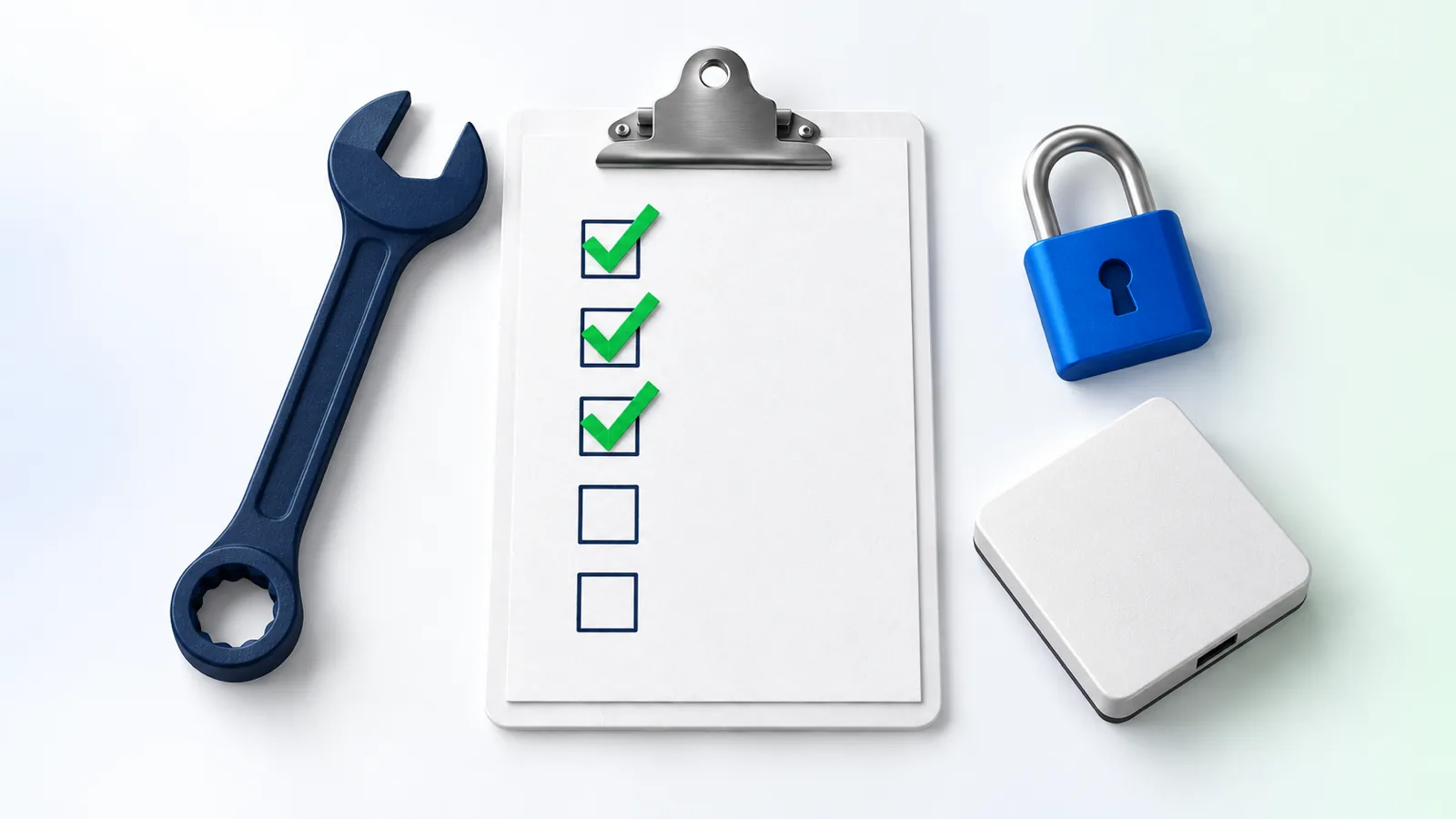
This is the service log. Go through it once a month, yourself or with whoever manages the site for you. The checkmarks aren't saved anywhere, so you can come back to it fresh every month.
Monthly site service
If you checked fewer than half, there's no need to panic. It's a sign that the site is living in "garage" mode, and that it's time for a service log. And almost every line on this list is a task that repeats, is well defined and can be checked. Exactly what an AI agent does well.
Three mistakes that keep repeating on WordPress sites
"The site works, so we don't touch it." It sounds cautious, but it's the opposite. Every month without an update makes the next jump bigger, and a year's worth of updates at once is far riskier than a small update each month.
"I turned on automatic updates for everything, so I'm covered." An automatic update with no backup and no check afterward is an autopilot with nobody watching the screen. It will update, and it may also break things, and you'll find out from a customer.
"I'll do it at the end of the month." A service log works only when someone is responsible for it. If it's you, set a reminder. If you don't have the time, this is exactly the place to hand the work to someone else, a person or an agent, and keep the approval for yourself.
How to start
- Take a snapshot of the current state. How many updates are pending, when the last backup was, who is logged in to the site and in what role. That's the first service.
- Set up access properly. A dedicated user, minimum permission, a unique key. Without your password.
- Decide what passes through you. Which updates the agent does on its own and which wait for approval. Write it down, don't just agree verbally.
- Start with checks, not changes. A month of weekly reports teaches you a lot about the site and about the agent, before it touches anything.
Want to understand how such an agent is built and what to prepare? Read the guide to building an AI agent. And if the site is only part of the picture, the guide to business automation shows where else repetitive work can move to automation.
Frequently asked questions
What is WordPress site management?
WordPress site management is the ongoing work that keeps the site healthy, secure and current: core, plugin and theme updates, backups, security and permission checks, tracking speed, testing forms, and updating content and products. Unlike fixing faults, it's done on a steady schedule even when everything looks fine.
What is the difference between maintaining a WordPress site and managing it?
Maintenance usually refers to the technical side: updates, backups, security and speed. Management also includes the content: products, prices, pages and posts. In a small business they usually come together, because a well-maintained site with stale content doesn't bring in customers.
How often should a WordPress site be updated?
There isn't one number that fits every site. Security updates are worth installing quickly, and WordPress can install some of them automatically. The other updates are convenient to batch into a regular check, weekly or monthly, and to run after a backup and a test. The main thing is not to let them pile up for months.
Can an AI agent manage a WooCommerce store?
It can take a large share of the routine work: upload products as drafts, update details, check checkout and report on orders. WooCommerce provides a built-in interface for creating and updating products and orders, with keys that can be limited to read-only. Publishing products, changing prices and coupons stay under your approval.
What happens if an update breaks the site?
That's why the backup comes before the update, not after. With a current backup of the files and the database, you can return the site to its state before the update and then calmly check what went wrong. If it's a complex fault, the agent records what was updated and when, and passes the information to the professional.
Do I need to give the agent the site admin's password?
No, and it isn't recommended. It's better to use a dedicated user with the narrowest role that's enough, an Application Password that can be revoked at any moment, and a unique SFTP or SSH key for file access. That way it's clear who did what, and you can shut off the agent's access without touching your own.
Sources
- https://wordpress.org/documentation/article/plugins-themes-auto-updates/
- https://developer.wordpress.org/advanced-administration/upgrade/upgrading/
- https://developer.wordpress.org/advanced-administration/security/backup/
- https://developer.wordpress.org/advanced-administration/security/hardening/
- https://wordpress.org/documentation/article/site-health-screen/
- https://wordpress.org/documentation/article/roles-and-capabilities/
- https://make.wordpress.org/core/2020/11/05/application-passwords-integration-guide/
- https://woocommerce.github.io/woocommerce-rest-api-docs/
- https://woocommerce.com/document/roles-capabilities/